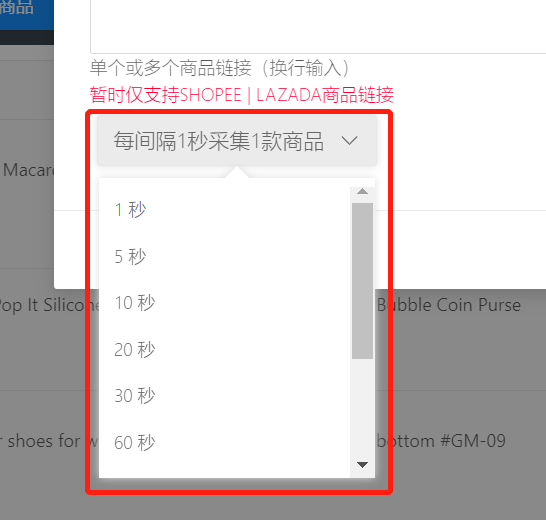
Product collection requires the simultaneous use of the XM plugin and API interface, as well as being logged into the platform (Shopee/Lazada) account.
If it is a new store on the Shopee platform, you must manually upload any product to the Shopee Seller Center first (it can be deleted afterwards) before this feature can be used normally.
Platform sales pages (taking the Philippines site as an example): https://shopee.ph ** / **https://www.lazada.com.ph
Note: The platform imposes frequency limits on product collection. If too many products are collected in a short period, your permission to collect products will be restricted for a certain time. Please be aware!
You can utilize the following features together!
)
Update Date: February 19, 2025, 23:30 Added automatic modification of image MD5 information to avoid platform duplicate image checks. Each upload will automatically modify the image MD5.
)
Three Steps:
First, Collect Products;
Second, Edit Products;
Third, Publish Products
1. Collect Products
- Enter the platform sales page [Search Page/Product Detail Page/Store List Page] to collect products.
Move the mouse over the product image to display a copy floating window, click to copy.
)
)
- Go to XM Helper's [Store Operations] -> [Product Warehouse] to collect.
)
2. Edit Products
Go to XM Helper's [Store Operations] -> [Product Warehouse] to perform editing operations.
- Based on the red font prompts on the right, complete the product data for each platform. You can edit in bulk or individually.
)
- Click individual edit to enter, and use the data validation feature to complete details.
)
3. Publish Products
- Click the [Publish] button and select the corresponding platform to list the products.
)
)
- When publishing, you can choose to use the original price or discounted price as the product price.
)
Comments
0 commentsNo comments yet — be the first to speak
If this piece sparked a thought, leave a comment and share your take.